Microsoft Clipchamp (2026) review
Microsoft's range of tools, such as Word, Excel, PowerPoint, and Teams, are very popular. However, not as many people know that Microsoft also offers a very capable AI video editor called Clipchamp, which comes bundled with its Personal and Business plans.
In this article, we put Clipchamp to the test. We'll examine the various features it offers, its plans, ease of use, and how it compares to its competitors to find out whether it delivers value for the money it charges and whether it's the right tool for your needs.
Clipchamp: Plans and pricing
Clipchamp offers one of the most generous free video editor plans we've seen among AI editing tools. You can edit videos using AI, trim, crop, resize, and rotate assets, as well as add animated text and titles. The free plan supports up to 1080p HD video resolution, along with limited access to royalty-free stock assets such as stickers, images, videos, GIFs, sound effects, and music.
The premium plan, on the other hand, supports up to 4K UHD video resolution and includes unlimited access to premium stock assets, premium filters and effects, and a single brand kit. However, Microsoft doesn't offer a standalone subscription to Clipchamp. Instead, it comes bundled with Microsoft 365 Personal, Family, and Business plans.
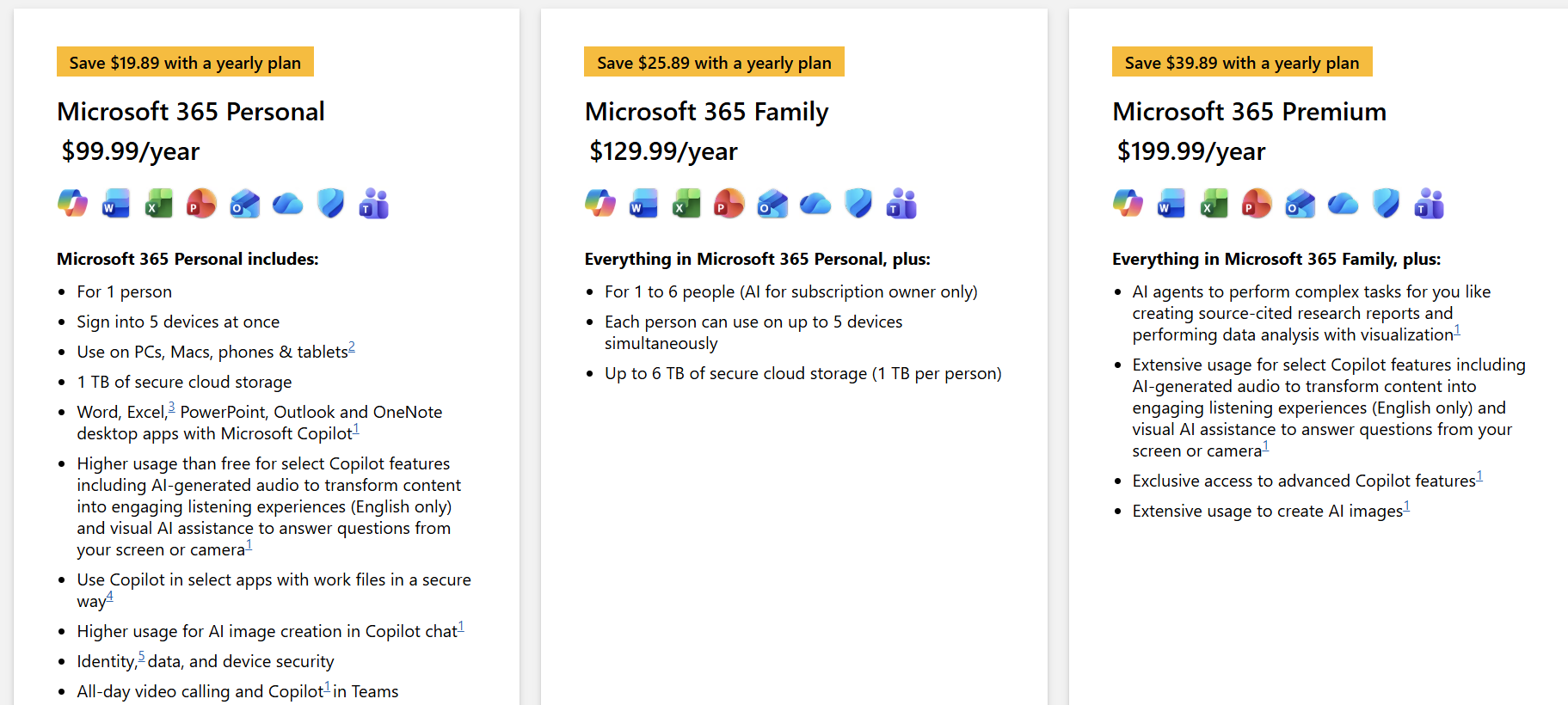
The Microsoft 365 Personal plan is priced at around $99.99 per year and comes with a host of other Microsoft apps, such as Word, Excel, PowerPoint, Outlook, along with Microsoft Copilot.
The Family plan costs $129.99 per year, while the Microsoft 365 Business Premium plan costs $22 per user per month and the Microsoft 365 Business Standard plan costs $14 per user per month. Both Business plans include Clipchamp.
That said, the tool can turn out to be expensive if you're purchasing a Microsoft 365 subscription solely to use Clipchamp. However, if you're already a Microsoft user or have a Microsoft 365 Personal, Family, or Business plan, Clipchamp is an obvious pick.
Clipchamp: Features
Clipchamp is primarily a video editing tool that incorporates a wide range of AI features to make the editing process much easier.
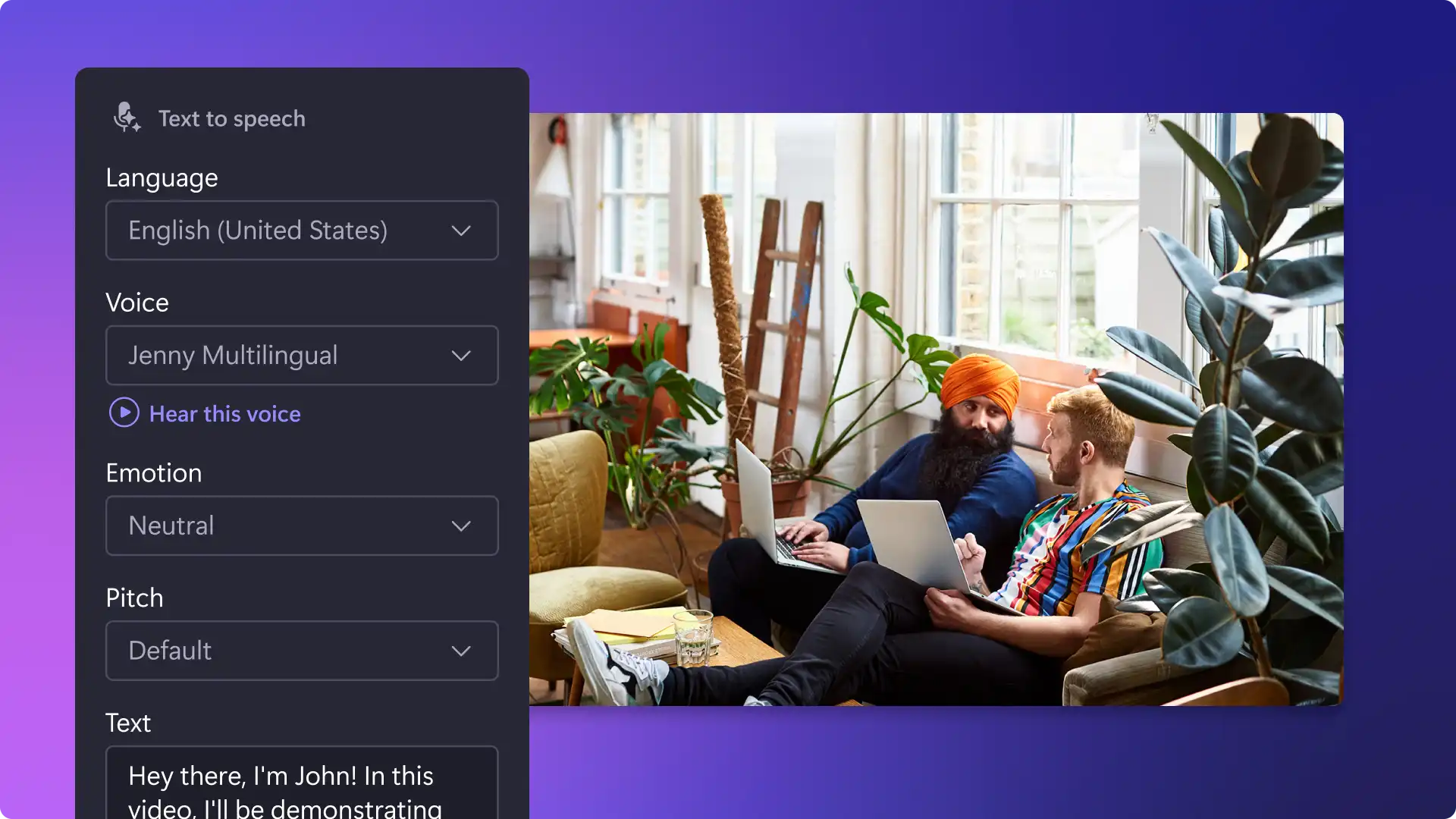
For instance, there's AI text-to-speech, which helps you generate AI voiceovers for your videos in over 80 languages. You can choose from 400 voices and even adjust the pitch or emotion to suit your videos.
Then there's AI silence removal, which can remove unwanted pauses from your videos, as well as an AI noise suppression feature that gets rid of background noise, mic static, and echoes in your audio and video tracks to improve clarity.
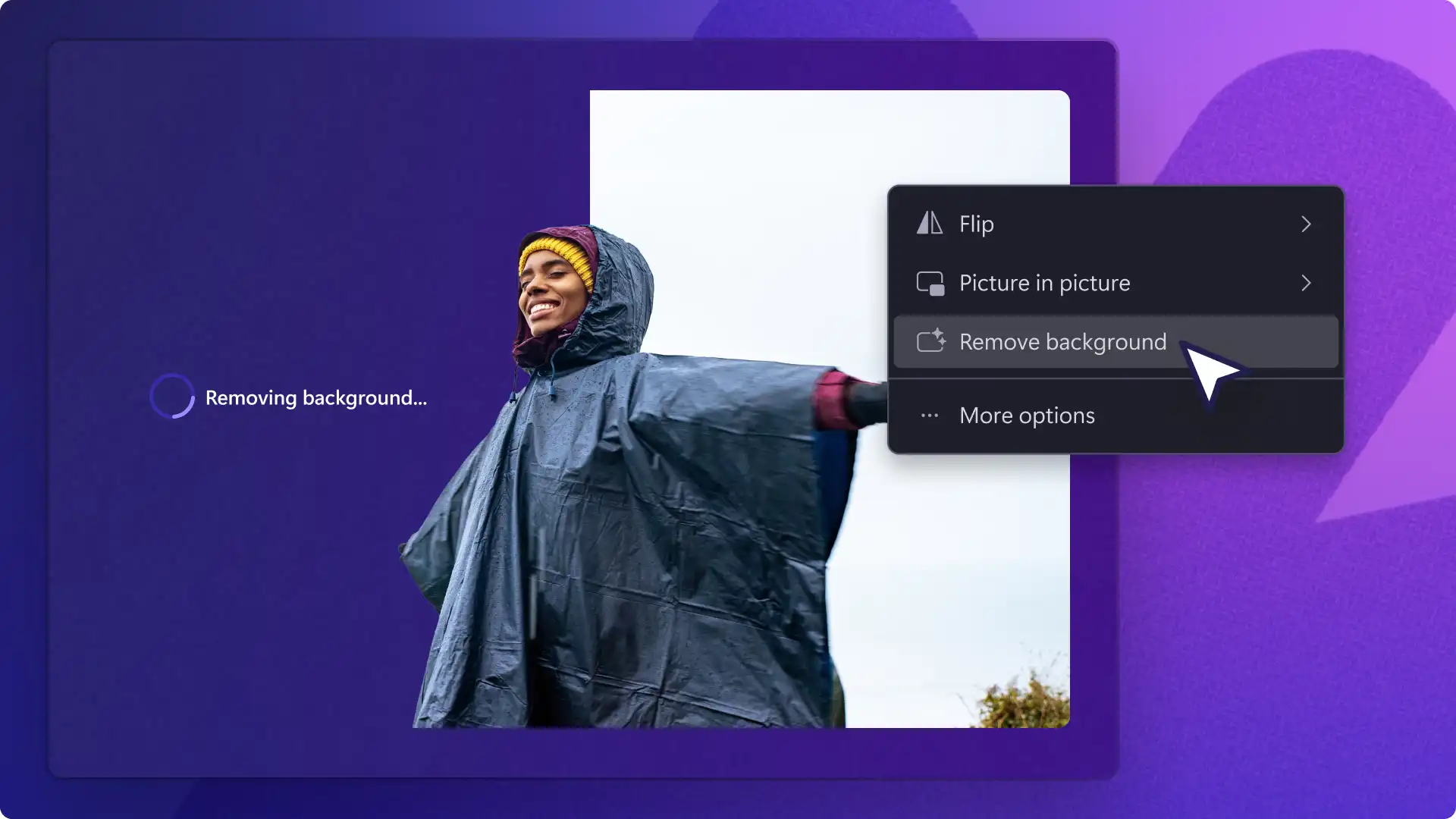
Additionally, there's a very handy AI background removal feature that lets you replace the background of any image with stock images, videos, or even solid colors.
You can also enable auto-captions for your videos, where Clipchamp's AI accurately transcribes your audio in the language of your choice. You can even download your subtitle transcript in just a few clicks.
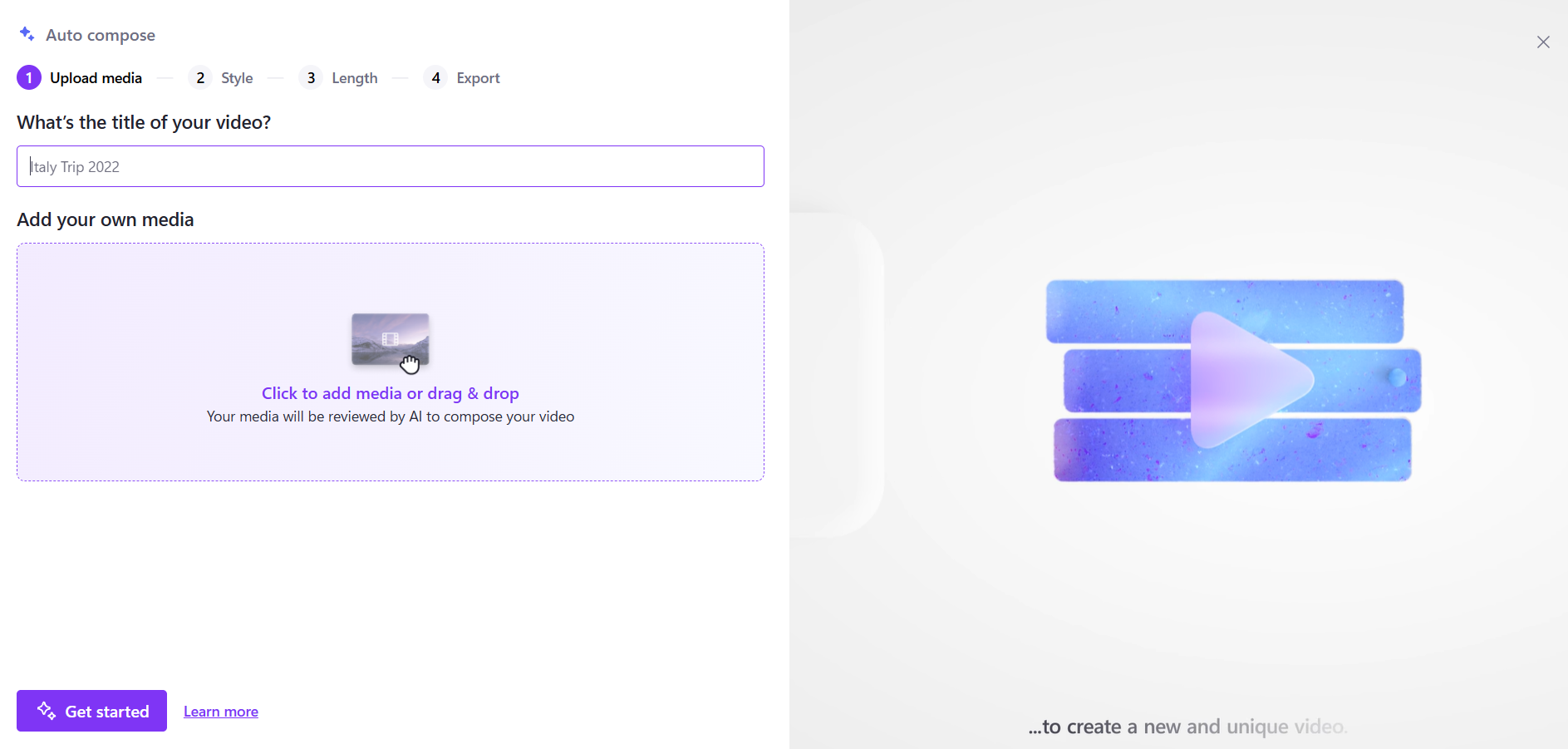
Now, besides helping you edit videos with AI, Clipchamp also uses AI to generate videos, but not from prompts. You can upload your files using its Create a video with AI feature, which auto-composes a video using user-supplied media. You simply have to choose a style and the length of the video, then wait for Clipchamp's AI to get to work.
One of the best things about Clipchamp is its rich collection of stock assets and templates. You'll find hundreds of elements, such as backgrounds, overlays, frames, shapes, stickers, emojis, audio, music, and text styles, within the editor itself.
There's also a vast collection of templates for various platforms and use cases, whether it's Instagram or YouTube, or videos for corporate presentations, celebrations, social media ads, or even memes.
You also get four built-in recording options with Clipchamp: Camera, Screen, Camera and Screen, and Text-to-Speech. Simply grant the app access to your webcam and microphone, select the window, tab, or desktop you want to record, and click Share. This comes in particularly handy if you regularly use a free screen recorder to create or edit your videos.
Clipchamp: Interface and in use
You'll need your Microsoft login details to use Clipchamp. Once you're logged in, you'll see a very clean interface that feels beginner-friendly. You'll get two options at the top: Create a new video or Create a video with AI. If you simply want to edit a video, click on the first option.
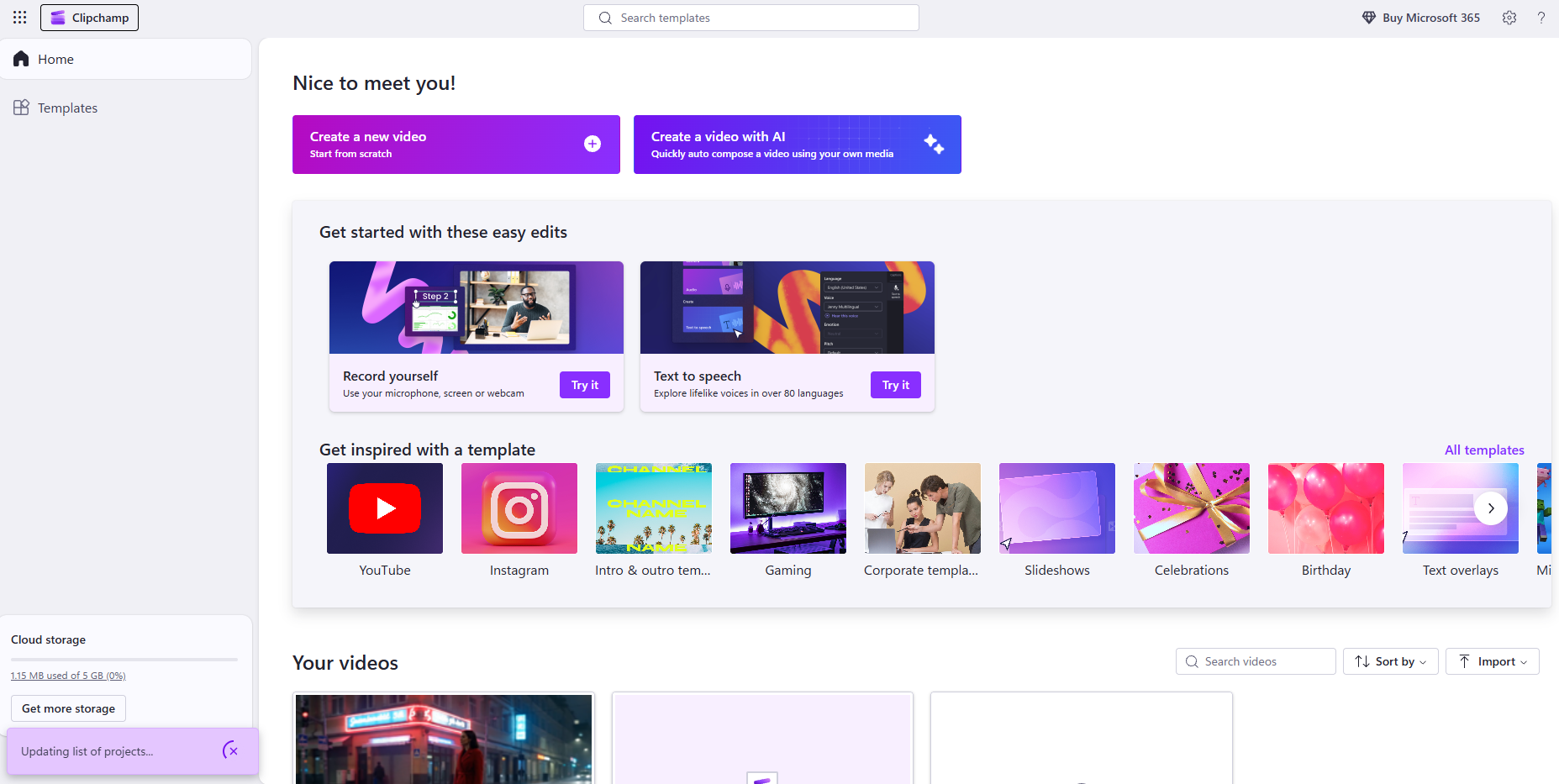
The editing interface is divided into three panels. The central pane is where you can preview your videos, along with a horizontal timeline at the bottom. On the left-hand side, you'll find all the editing options and elements, such as the content library, templates, text, and transitions. You can select any element you want to add to your video.
Individual settings for every element you add appear on the right-hand side when selected. For instance, if you add an audio track and click on it in the timeline, all the audio-related settings appear in the right-hand panel.
Editing in Clipchamp is as simple as dragging and dropping. Simply drag a clip from your library onto the timeline to start a new project. Then choose any element you want and drag and drop it onto the timeline. Repeat the process until you've added and edited all the elements you need.
Clipchamp: How we tested
We used Clipchamp's free version to test its editing capabilities. We first clicked on Create a New Video, which opened a blank dashboard. We started by importing media and adding a small five-second clip to test it out. Once imported, we simply dragged it to the timeline at the bottom to begin editing.
First up, we found basic video settings on the right-hand side, such as filters and effects. We played around with the free filters, including Golden Hour and Vibrant Blogger. Each filter comes with an intensity slider, allowing you to choose how strongly you want it to be applied. The same goes for the effects.
Once we had edited the video, we started testing the elements in the left-hand panel. We first recorded a short voiceover and added it to our video. We then browsed through Clipchamp's audio selection and chose a soft rain background track.
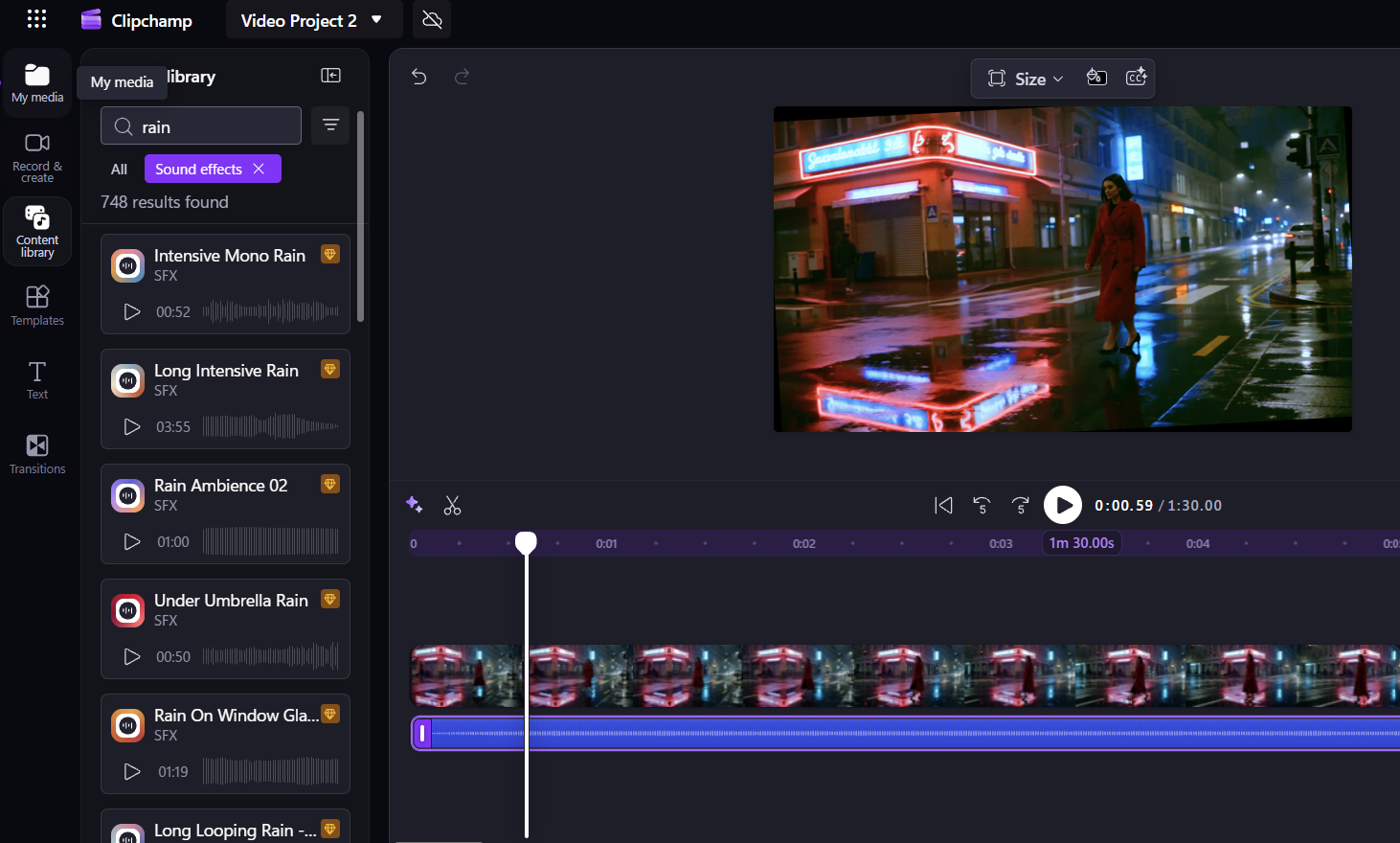
Note that much of the music and audio selection is only available on the premium plan. That said, there's still a fair collection included in the free plan.
A nice touch is that you can search its vast content library using keywords in the search bar, which saves you from scrolling through its extensive collection of assets. Overall, the editing experience was pretty smooth, and we didn't encounter a significant learning curve.
Clipchamp: Alternatives
While Clipchamp uses AI to help you edit videos, it cannot generate AI images or videos from prompts. If that's what you're looking for, you'll need to consider tools like Veed or Kapwing.
Veed, for instance, allows you to generate AI videos using various models such as Seedance, Luma Ray, PixVerse 4.5, and more. You can also generate AI avatars with over 60 character options. One of Veed's biggest strengths is its wide selection of subtitle options, including dynamic and auto-generated subtitles. Starting at $12 per user per month, Veed is a good pick if you're looking for a mix of AI generation and editing.
If you're looking for something more professional, InVideo is a great choice. Along with its proprietary Agent One, it lets you create professional short videos, films, and cinematic content using conversational prompts. Built for filmmakers and other creative professionals, it can create promotional videos, animated videos, advertisements, and explainers. That said, InVideo is on the expensive side, with plans starting at $17 per month.
If you're looking for something more affordable, we'd recommend Filmora, which starts at just $4.17 per month. Although it can also help you create AI videos and images, Filmora is a more advanced video editing platform that lets you edit videos using simple AI prompts instead of doing everything manually on the editing dashboard. Along with this, it has also introduced features such as animated charts and AI video extenders to help you achieve better editing results.
Clipchamp: Final verdict
Microsoft Clipchamp is a very handy video editing tool that's surprisingly beginner-friendly while offering several advanced features at the same time. For instance, you get an AI auto-compose feature that lets you upload media and generate AI videos by simply selecting the style and length of your video.
Moreover, it comes with AI text-to-speech in over 80 languages, along with AI silence removal and background removal features, which come in particularly handy. There are also plenty of stock assets, including templates, effects, filters, stock audio, and music, that you can choose from, even on the free plan.
Editing is incredibly straightforward, too. All you have to do is drag and drop your videos and the elements you want to add to your final output. However, one downside is that you cannot generate AI videos or images from prompts.
Also, Clipchamp doesn't offer standalone pricing or plans and is only available as part of Microsoft 365 subscriptions, which start at $99.99 per year for Personal plans and $14 per user per month for Business plans. This can be quite expensive compared to dedicated AI video generators and editors such as Filmora or Adobe Firefly.
We've tested a range of video makers and editors, including the best video editing software, the best video editing apps and the best free video editing software.


Comments
Post a Comment