Asus ProArt PZ14 review: This surprisingly powerful tablet PC transformed my creative workflow
ASUS ProArt PZ14: 30-second review
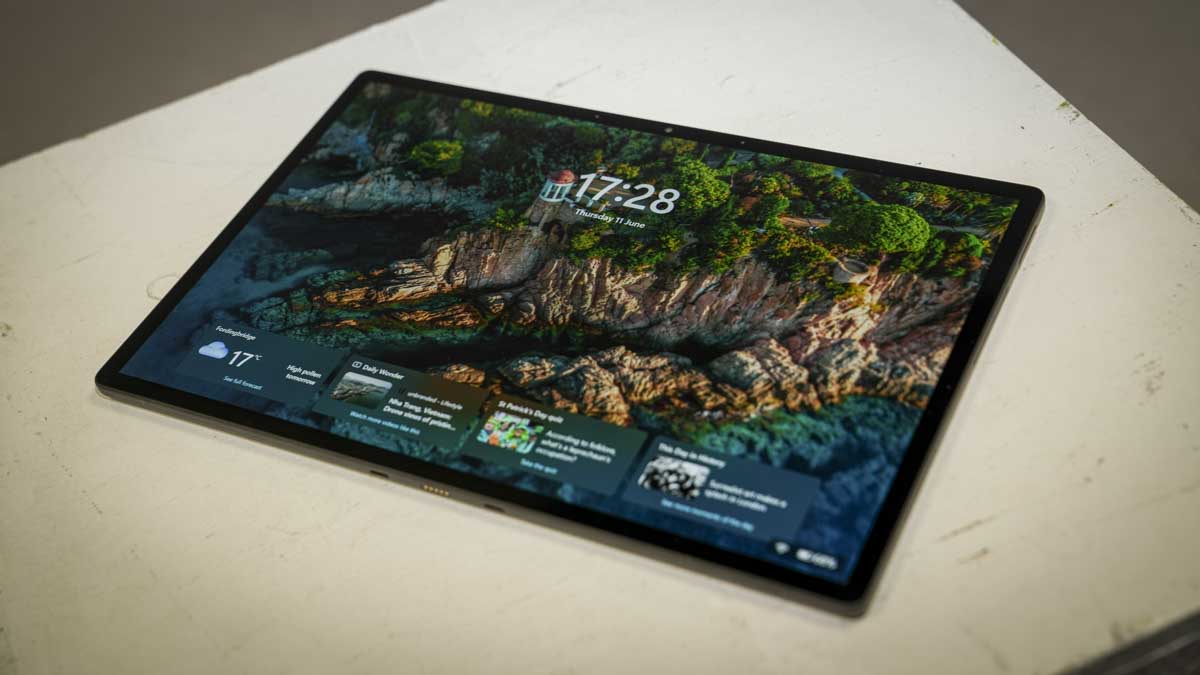
The Asus ProArt PZ14 arrives as one of the most impressive pieces of hardware to come through the test setup this year. At 9mm thick and weighing in at an impressive 0.79kg, it’s closer in scale to an iPad Pro than a conventional laptop, but with a 14-inch 3K OLED display, and the optional removable keyboard and Asus Pen 3.0, all powered by a Snapdragon X2 Elite processor, it proved to handle every Adobe Creative Suite application without issue.
Lightroom Classic, Photoshop, Premiere Pro, After Effects, and DaVinci Resolve all ran well, with no compatibility or performance issues that I have experienced when running ARM machines in the past. Microsoft Office ran as well as ever, and it was only when testing some of the games at the end of the test that those compatibility issues did appear. Some games, such as Indiana Jones and the Great Circle, were a no-go, while Hogwarts Legacy, suffered some graphics breakup, but beyond that, the performance was generally balanced.
Plugged into AC power you get the option to push the tablet into Performance mode, this boost the processing speed, and while it makes editing and game play smooth, the fans tended to kick in to quite a level.
The touchscreen display is the best 3K resolution display I’ve seen, and for creative work, the 144Hz, Pantone-validated panel with an anti-reflective coating looked great and handled bright outdoor conditions better than most OLED panels, with limited reflections.
One of the weak points was the detachable Bluetooth keyboard, which flexes at the joint, as is common with this type of design, making any use away from a solid desk difficult. Early on in the test, I realised that at a desk, the keyboard was great, away, it was best to use the Asus Pen 3.0 or a finger as the primary input method. Not only did this make sense, but it also transformed the machine's use.
Overall, however, the power for the size and price is exceptional, and in the creative workflow, like the iPad Pro, it can integrate with the project from beginning to end, from being used to tether to your camera through to the editing, uploading and distribution of your work.
ASUS ProArt PZ14: Price and availability
- How much does it cost? $2000 TBC
- When is it out? Now
- Where can you get it? From retailers such as Best Buy
In the US, the ProArt PZ14 is currently available for $1900 at Best Buy. This is for the 16GB / 512GB configuration.
Outside of the US, I can't see much availability. UK pricing for the 32GB, 1TB configuration with the ASUS Pen 3.0 and Bluetooth keyboard has not been confirmed at the time of writing. Going on what has come before, expect the price to be around the £2,000 mark in the UK.
- Value: 4/5
ASUS ProArt PZ14: Specs
CPU: Snapdragon X2 Elite X2E-88-100, 18 cores, up to 4.7GHz
GPU: Qualcomm Adreno X2-90, 128MB dedicated GPU memory
NPU: 80 TOPS
RAM: 32GB LPDDR5X
Storage: 1TB PCIe 4.0 SSD
Display: 14-inch ASUS Lumina Pro OLED, 3K
Connectivity: 2 × USB4 (40Gbps), SD card reader, WiFi 7, Bluetooth
Battery: 75Wh
Cameras: 8MP IR front, 13MP rear
Durability: IP52, MIL-STD 810H
OS: Windows 11 Home
Weight: 0.79kg, 9mm thin
Accessories optional: ASUS Pen 3.0, Bluetooth keyboard, stand cover
ASUS ProArt PZ14: Design
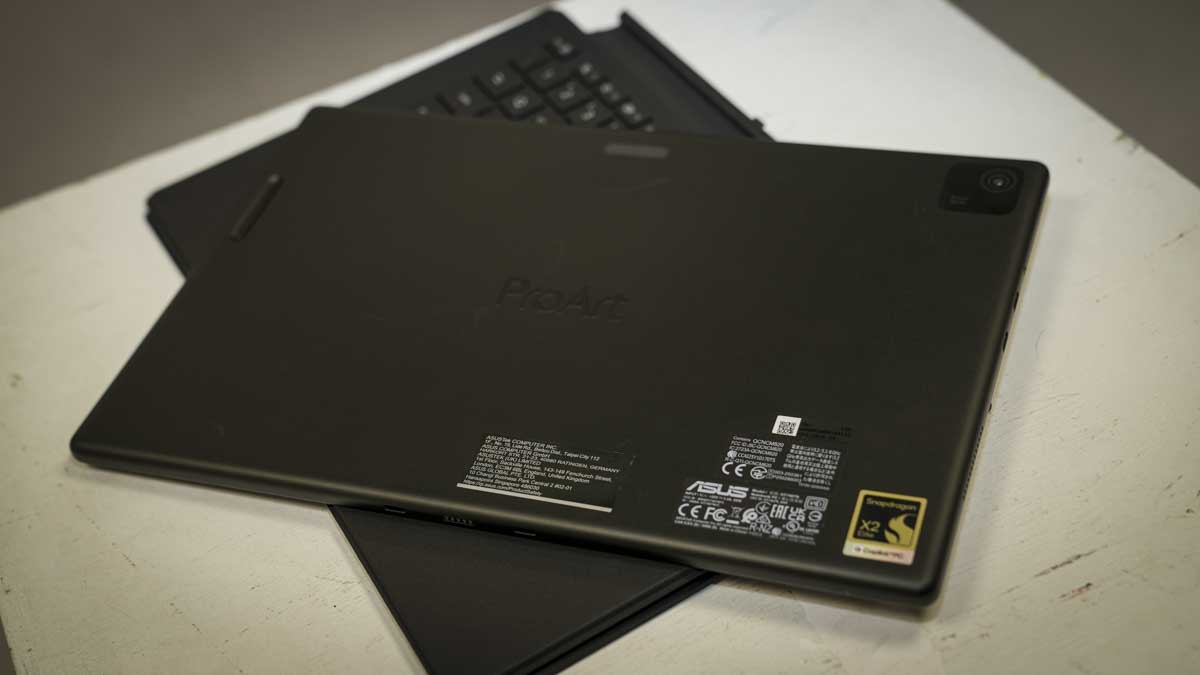
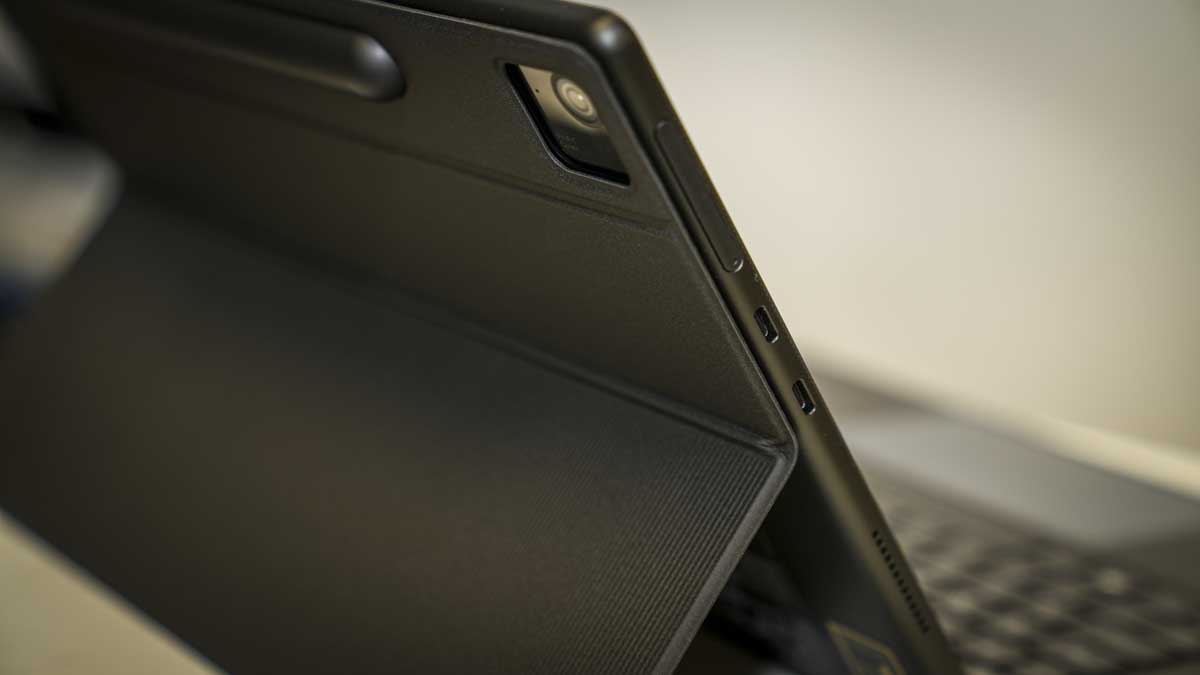
The ProArt PZ14 is an exceptionally well-built tablet, and the hardware is very minimal. On the left side of the screen are the two USB4 ports that let you plug into the mains and attach accessories, and these are joined by an SD card slot, which is covered. Around the edges are plenty of ventilation slots that help expel the heat away from the Snapdragon processor and electronics inside.
Lifting the tablet from the packaging, the Nano Black CNC-machined aluminium chassis gives an instant premium feel, and the finish proved to be pretty much smudge-resistant. Over the month of testing, the build quality proved exceptional as it was moved between the studio, office, and location work, and used at home in the evenings while catching up on TV.
The aluminium chassis gives the table a tough feel, and this is paired with the IP52 rating, which means it can withstand a light rain shower for a short time without issue, but doesn’t go as far as being left out in it.
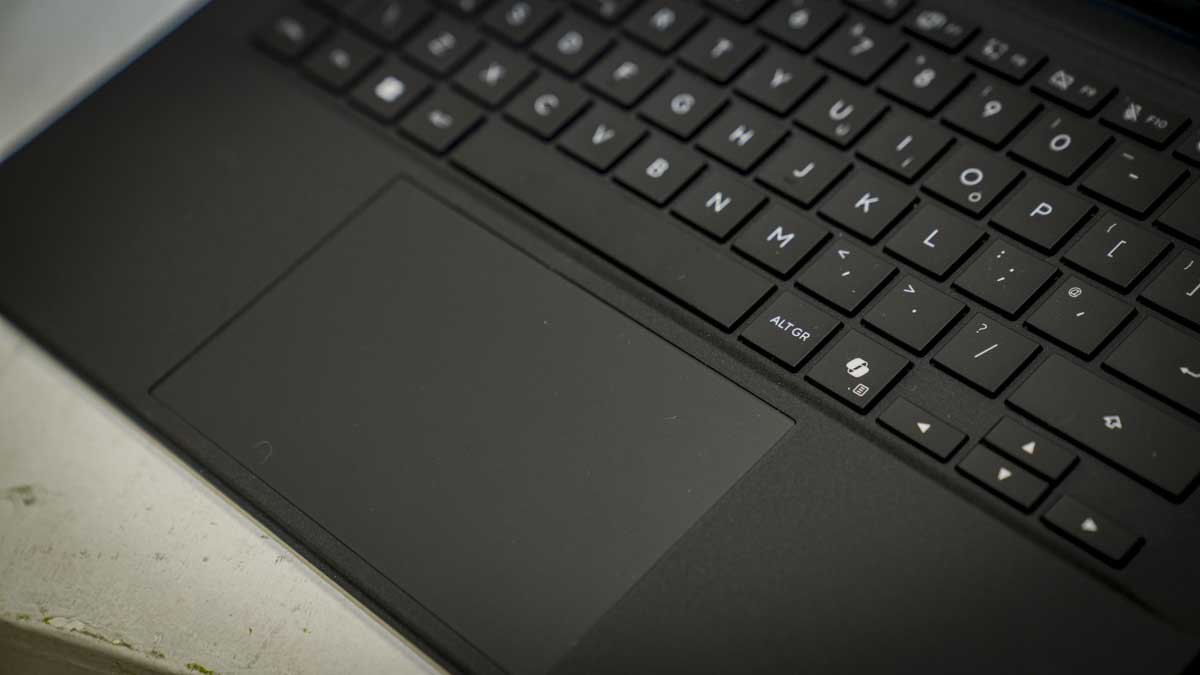
During the test, I found that the detachable keyboard supplied with the PZ14 was fine for use on a desk, where it offers a decent enough typing surface with good key travel, and likewise, the touchpad. Away from a desk, however, the flex between the keyboard and tablet can make it difficult to use; this is a tablet.
Think of it this way: in the office/studio, the keyboard is a traditional input device; in the field, it's just part of the protective shell, with the Asus Pen 3.0 and on-screen keyboard handling input.
I’m not used to using a pen to interact with a screen; however, the Asus Pen 3.0 with MPP 2.6 support and haptic feedback is excellent. It paired instantly, and, in Lightroom, Photoshop, and Asus' own StoryCube and MuseTree apps, offers a more natural and intuitive way to navigate than the trackpad.
On location with the tablet held in hand, I started using the pen as the primary input method, and it worked far better than the keyboard and I expected.
The magnetic stand cover, of which the keyboard is part, enables you to fold out a small stand, which is handy when everything is supported on a desk, and there’s plenty of flexibility over the angle. In the studio, I tend to use a wired mouse and an external keyboard connected via USB4 to provide a fast input for video editing, which is standard.
- Design: 4.5 / 5
ASUS ProArt PZ14: Features
The PZ14 has been designed with the Creator in mind and features a decent array of creative-focused apps that will help you organise files and generate ideas. The ProArt range has in the past been closely tied to Adobe products, and here the Adobe Creative Suite performance is in mind; the Snapdragon X2 Elite does seem to have been optimised.
Lightroom Classic, Photoshop, Premiere Pro, After Effects, and DaVinci Resolve all opened and ran without compatibility errors on the Snapdragon X2 Elite X2E-88-100, 18 cores, up to 4.7 GHz, with thumbnails and timelines rendered at speed, supported by the Qualcomm Adreno X2-90, 128 MB of dedicated GPU memory, and graphics.
Inside is a relatively small 1TB SSD, but this provides exceptional transfer rates, exactly what you need when transferring large quantities of files, although it would have been good to see at least 2TB with the file sizes associated with the latest cameras.
Testing the capabilities of this hardware, I checked the Adobe Bridge thumbnail rendering for images from a Sony a7 IV and a Canon EOS R5 C RAW files and was impressed by the speed, though the noise from the cooling system was louder than expected.
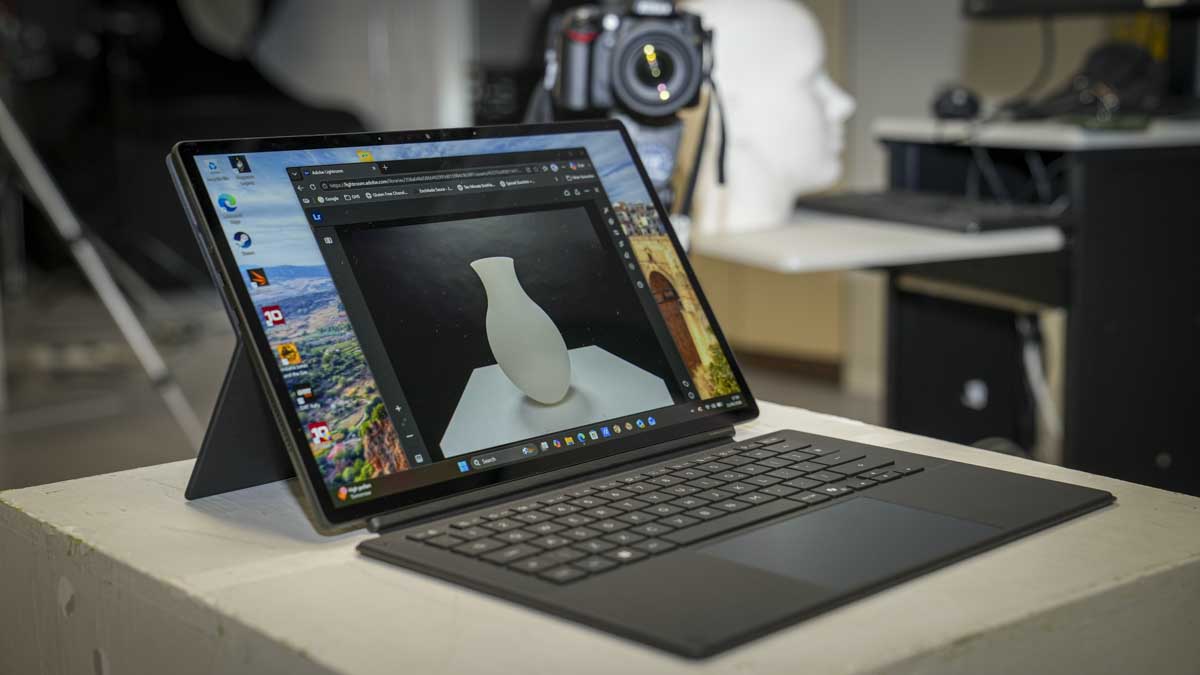
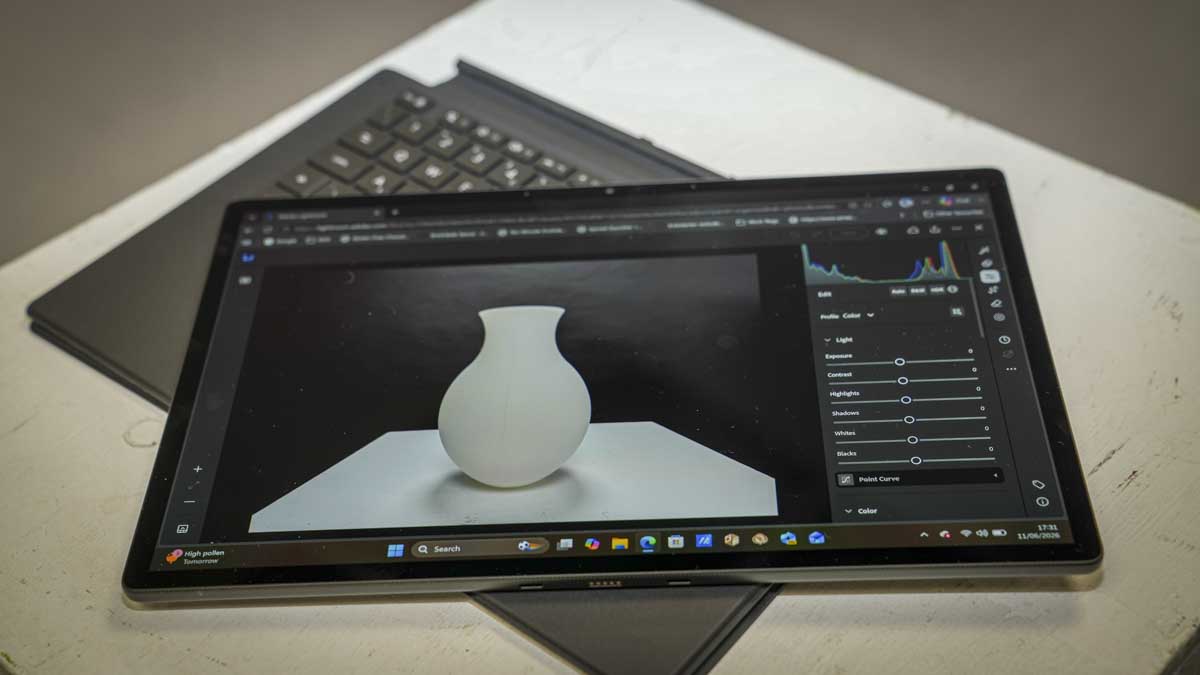
Lightroom's touchscreen workflow seems to be made for the system, scrolling through the library and making adjustments with the slide controls; it felt natural on the 14-inch ASUS Lumina Pro OLED (3 K).
Alongside the CPU and GPU is an 80-TOPS NPU that enables Copilot+ features and boosts AI-powered tools in Premiere Pro and Photoshop. Generative fill and timeline expansion both ran smoothly and quickly. Local LLM inference via LM Studio was downloaded and was functional with a few issues.
However, if you really want to reach your full potential, StoryCube, Asus' AI media management app, highlights exactly what can be done and works well alongside Adobe Bridge, offering useful automatic organisation of RAW files and video assets.
The hardware features of the tablet design differ slightly from those of most laptops and mini PCs, so there are some compatibility issues. For instance, when gaming, ARM isn’t always as compatible as other systems.
Indiana Jones and the Great Circle would not load at all due to a Vulkan plugin compatibility error. Hogwarts Legacy loaded slowly but ran smoothly once started, aside from some graphics break-up, and always with the background of the fans working hard. PCMark 10 and the Windows Experience Index did not run at all, even with the usual workarounds.
Through the test in the ProArt Creator Hub, I shifted the resources into Performance, although this mode is only accessible when plugged directly into the mains. While in all other modes, cooling and noise are well balanced, everything is cranked up to 11, including the fans. However, in the 0dB whisper mode, fans are kept off during light use, meaning the system runs silently.
In Performance mode, which I used for video editing, the fans activate during rendering and timeline processing, and are noticeably audible. If you’re working on audio-sensitive work, it’s best to switch to one of the quiet modes and then back when that content needs editing or wear headphones.
- Features: 4.5 / 5
ASUS ProArt PZ14: Performance
As with most laptops and mini PCs, the tablet is almost ready to run out of the box. To get started, I plugged in the power supply and gave the tablet a full charge. It’s worth noting that the power supply is 65W, and while it is USB-C, if you plug in a higher-wattage USB-C connection, the machine will prompt you to use the provided power supply or one of equivalent rating.
Once the final steps of the Windows 11 Home setup were complete, I could install all the usual apps. It was apparent from the outset that the internal SSD was fast. With files downloading from my external storage nice and quickly. Sure enough, the benchmarks highlight results of 6,065 MB/s read and 5,356 MB/s write, really showing that the PCIe 4.0 SSD was close to the upper limit.
As the machine filled with all the test applications, the 1TB internal SSD quickly filled with programs and files, including most of the Adobe Creative Suite, local LLM models and video project files; games had to wait due to space limitations.
Storage is always a consideration, and with the ProArt PZ14, if you’re working with video, you’re going to have to supplement the internal storage with a USB4 external SSD or, in this review, a direct NAS connection. During the test, editing 4K Canon EOS R5 C footage via a Ugreen DXP4800 GT NAS connection delivered approximately 800MB/s transfer speeds over USB4-to-10GbE, which was more than enough for smooth Premiere Pro timeline editing.
Over the test period, using Lightroom Classic was one of the major highlights, tethering a camera to the tablet so I could shoot, adjust, and share files with other members of the team. Touch input via the screen, combined with pen interaction for adjustments, just made things easy and far more natural than using my MacBook Pro M1 Max for on-location work.
After the shoot, editing images in batch in Lightroom and editing footage in Premiere Pro were handled well by the system. Run in performance mode, the fans were on constantly; however, switching down to standard mode in Photoshop and Lightroom still provided a good balance of speed, but did cut out the fan noise.
When it came to video editing, a pair of headphones helped me to focus on the vocals and video audio rather than the noise from the machine. It’s also worth noting that Performance mode is only available when plugged into the mains, Standard is the default.
CrystalDiskMark Read: 6,065.91 MB/s
CrystalDiskMark Write: 5,356.66 MB/s
Geekbench 6 CPU Multi-Core: 9,976
Geekbench 6 CPU Single-Core: 2,908
Geekbench 6 GPU: 39,018
Cinebench CPU Multi: 4,345
Cinebench CPU Single: 634
3DMark Fire Strike Overall: 8,174
3DMark Fire Strike Graphics: 8,787
3DMark Fire Strike Physics: 19,321
3DMark Fire Strike Combined: 3,423
3DMark Time Spy Overall: 3,522
3DMark Time Spy Graphics: 3166
3DMark Time Spy CPU: 9737
3DMark Wild Life Overall: 31,823
3DMark Steel Nomad Overall: 3,788
PCMark 10: N/A
Windows Experience Index: N/A
Two other big points about the performance are the screen, which is just exceptional, with clean, clear detail and tone that, once calibrated, was absolutely ideal for all areas of creative work.
The other is the battery life, which just seemed unending. Usually, when video editing, image processing, or processing endless documents, this processing draws additional power, especially when accessories are also plugged in and drawing on resources.
However, with the combined use, the battery lasted all day, and a two-hour gaming session in Hogwarts Legacy the battery stood at 70%.
One other point to make is compatibility; while most applications load, some won’t. During the test, the usual benchmarking software, PCMark, refused to run a full test, and games such as Indiana Jones would not run either.
- Performance: 4 / 5
ASUS ProArt PZ14: Final verdict
The Asus ProArt PZ14 is a great machine for photographers who work in the field and need a slim, light, colour-accurate display for Lightroom editing and camera tethering. It’s also a decent option for lightweight Premiere Pro and DaVinci Resolve editing, especially as a, with a display quality that makes colour grading reliable even without a secondary monitor.
The keyboard is a bit of a compromise, depending on how you work. On a desk, it is adequate. Away from a desk, it’s frustrating, as this design tends to be with the flexible connector.
The Asus Pen is excellent and, in many workflows, becomes the better primary input device. You also have to consider the noise from the fans, which did seem louder than with past models, likely due to the increased performance.
ARM compatibility for creative applications is not an issue with all of the Adobe apps, Microsoft Office and the Asus AI apps running without issue. This is a tablet PC that would suit enthusiasts, photographers, and students, providing performance in a very flexible format and a great alternative to a laptop and actually better suited in many situations.
Should I buy the ASUS ProArt PZ14?
Value | Well balanced for the OLED display, ARM performance and all-day battery | 4/5 |
Design | Exceptional tablet chassis and display; although the keyboard flexibility is an issue | 4.5/5 |
Features | Large touch screen, powerful CPU, USB4 and all day battery life | 4.5/5 |
Performance | Snapdragon X2 Elite handles all creative applications and workflows; however, 1TB SSD fills quickly, and fans are audible under load | 4/5 |
Overall | A great option for field photography and Lightroom, especially in the tablet format. Video editors will need external storage from day one. | 4/5 |
Buy it if...
You shoot stills and need a field editing and tethering device.
The 3K OLED display, Lightroom touchscreen workflow, Pen 3.0 input, and all-day battery make the ProArt PZ14 an ideal companion for on-location photography. When tethering, reviewing and sharing images, it just seems purpose-made.
You work at a desk to type.
On a desk with the keyboard at a stable angle, the ProArt PZ14 works as a full creative workstation. Connect a USB4-to-10GbE adapter for NAS access, and the storage limitation is effectively removed.
Don't buy it if...
You need to type or edit from your laptop.
The keyboard flex makes lap use impractical. This is a tablet first. If a comfortable laptop typing experience away from a desk is essential, look at a traditional clamshell design at this price.
You edit long-form video without a NAS or external SSD
1TB fills fast when the Adobe suite, project files and local AI models are all installed. External storage is a near-immediate requirement for video editors; it's worth factoring this in.
For more content creation machines, we've tested the best video editing laptops and best video editing computers.


Comments
Post a Comment